Start here.
What YWGSD does, the handful of words it uses, where everything lives, and the eight things to do once you’ve signed up. Read it in ten minutes, or skip to the setup steps.
What it does
You tell YWGSD what you’ve got to do and roughly how long it takes. It puts each job in a real slot on your calendar, around the meetings you already have. When something changes — a meeting lands, you finish early, you don’t get to one at all — the rest of the day moves itself.
Tuesday afternoon
Your afternoon, planned around your meetings
Send Priya the contract
Budget review
Business plan, first draft
2:00–3:00
Book the dentist
Italian, 20 min
It runs on four rules, and How it works goes through each one properly. The short version: write things down the second they occur to you, decide the details later in one sitting, and let the calendar rebuild itself instead of re-planning by hand.
The words we use
A dozen words that mean something specific here. Two minutes now saves the rest of this guide reading like a foreign language.
- Task
- A unit of work with a duration, waiting to be placed
- Block
- A task's placement on the calendar — a real slot
- Event
- Something from your real calendar, which YWGSD reads and never writes
- Schedule
- A named set of weekly hours (Work, Personal)
- Inbox item
- A captured thought that is not yet a task
- Capture
- Putting something in the inbox
- The once-over
- Working through the inbox, turning items into tasks
- Repeating task
- The rule
- Occurrence
- One instance of a recurring task on one date
- Pin
- Fixing a block to a chosen time
- Rollover
- Unfinished work moving to the next opening automatically
- Horizon
- How far ahead placement runs — 18 months
Where everything lives
Four tabs on the iPhone, the same four in the top bar on the web: Calendar, Inbox, Tasks and Settings. Everything else opens from one of them.
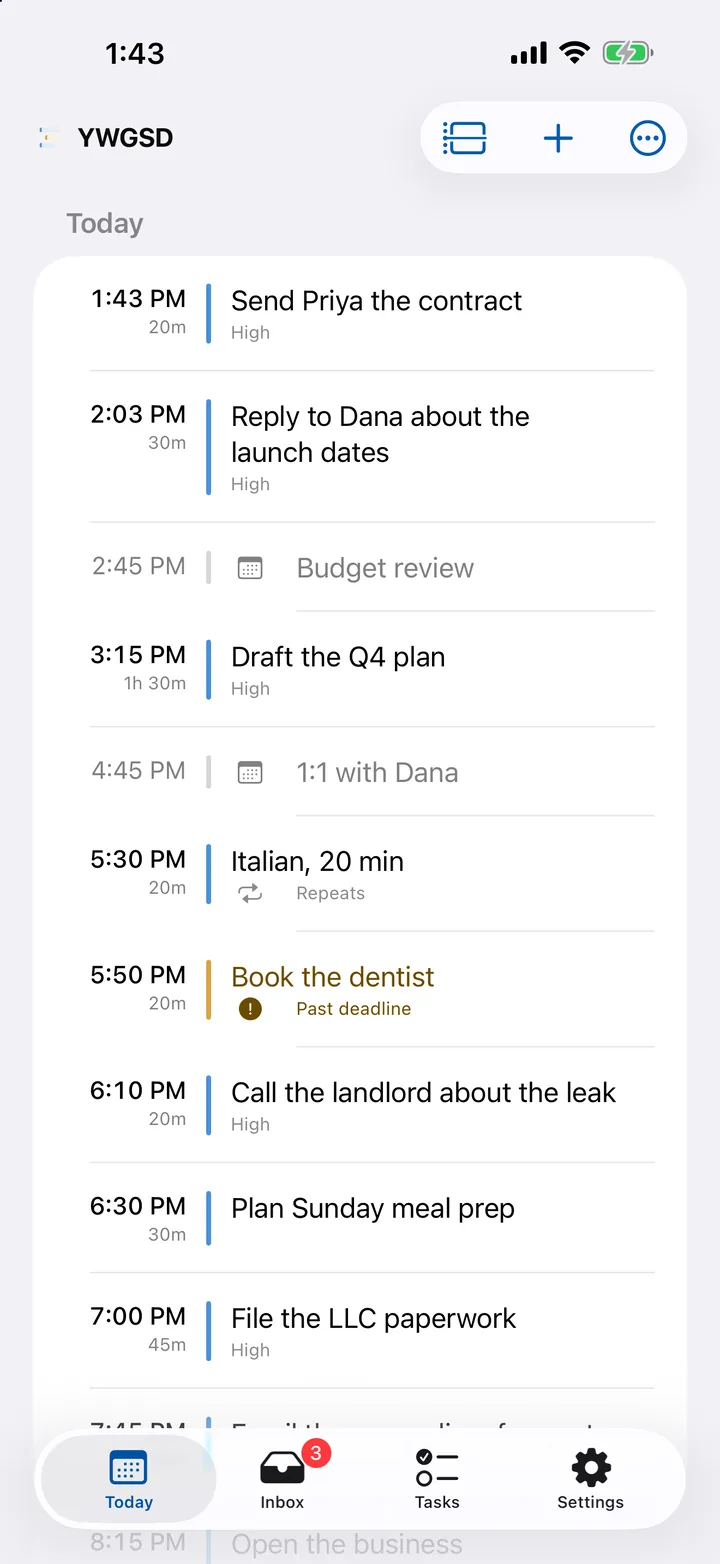
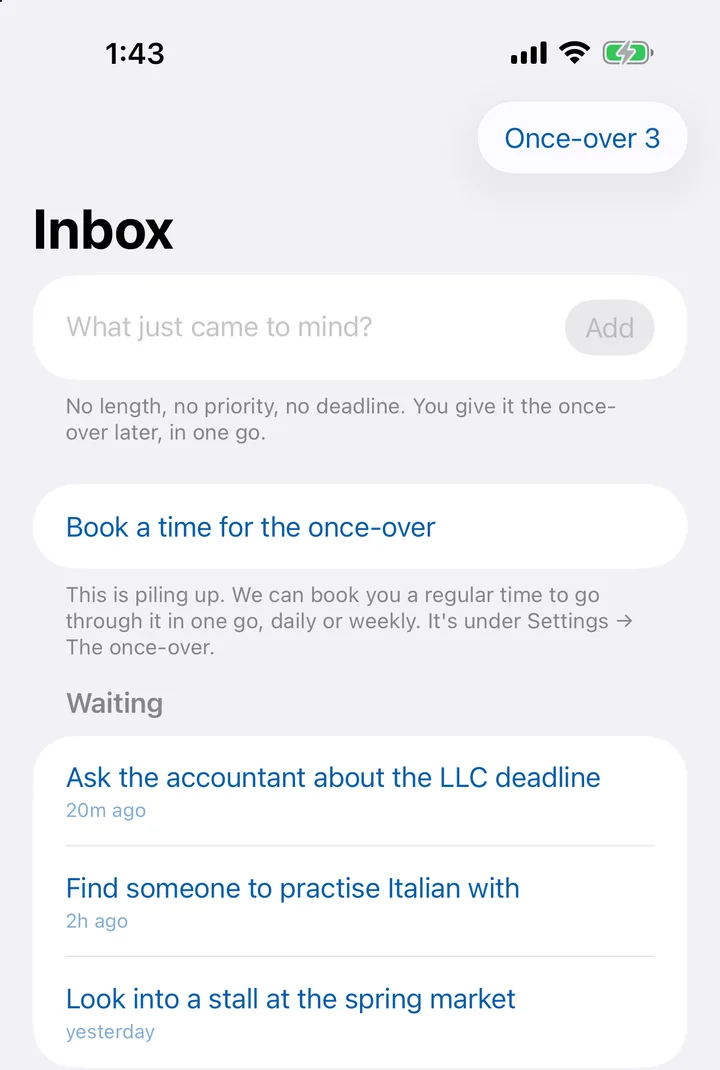
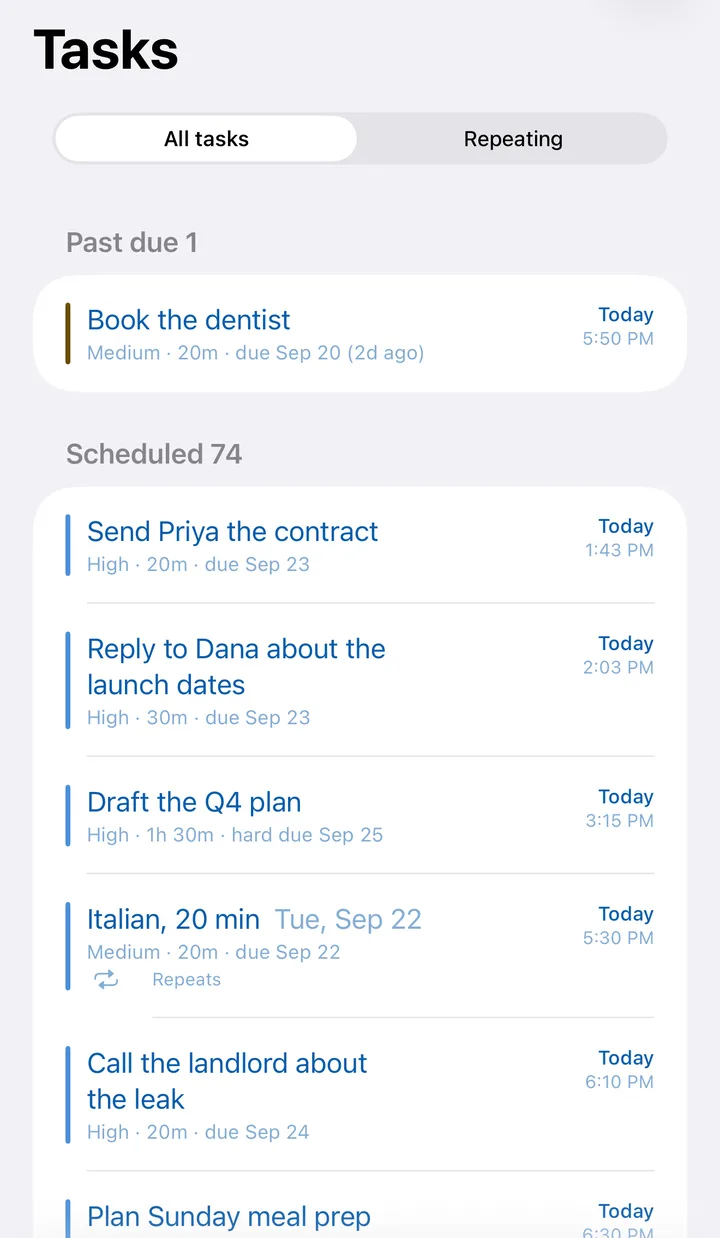
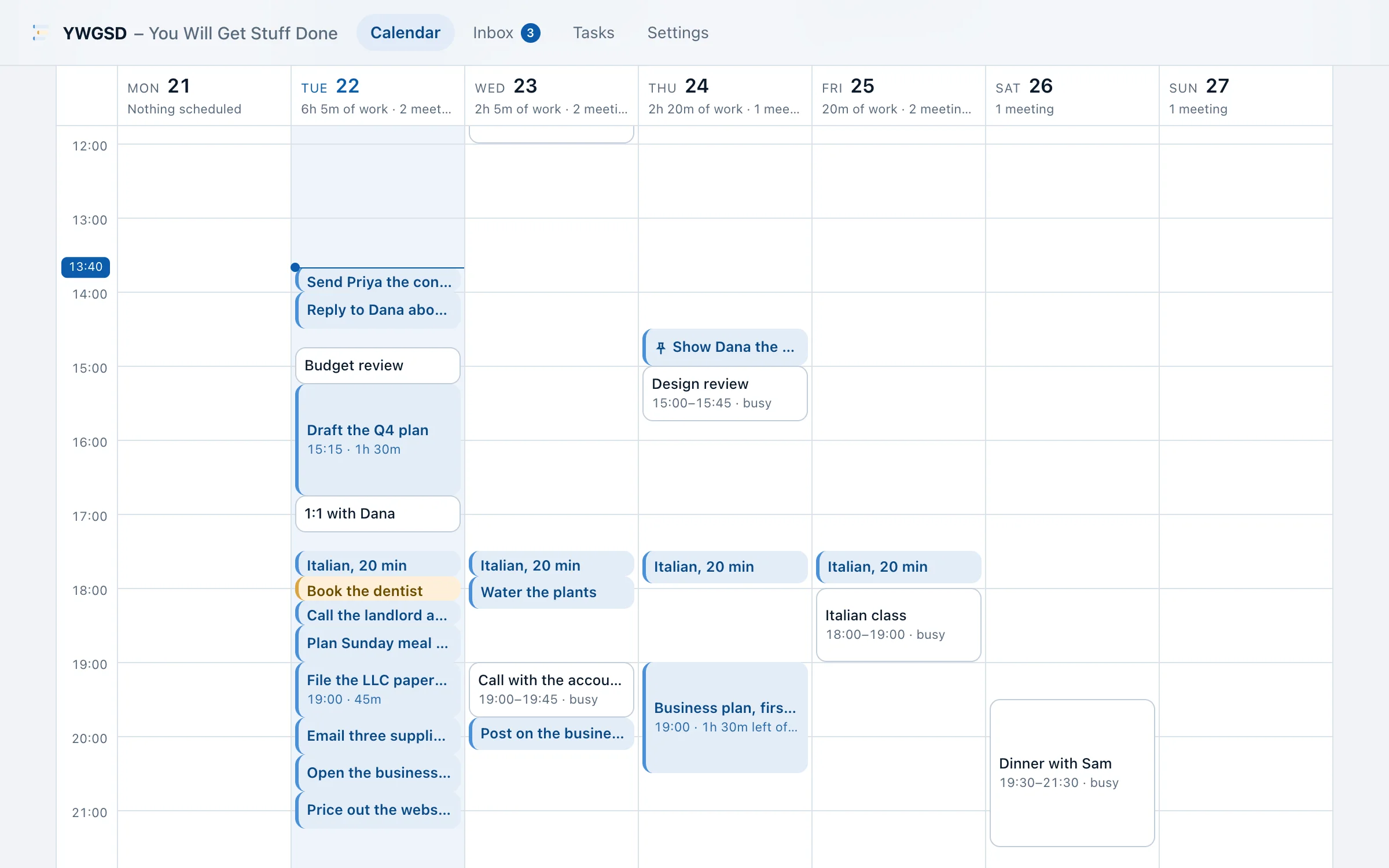
Every screen, and what it’s for
- Calendar
- The plan. Day, week, month, or an agenda list. Where you work from.
- Inbox
- Captured thoughts waiting on a decision.
- Tasks
- Every task as a list, grouped by how much attention it needs.
- Repeating
- Anything that comes back around. It sits inside Tasks, behind the Repeating toggle.
- Templates
- Saved task shapes for work you set up repeatedly.
- Hours
- Named sets of weekly hours — Work, Personal — that bound where work can land.
- Calendars
- Connected calendars — Google, Outlook, iCloud — and per-event overrides.
- Settings
- Top to bottom: Set up (Connected calendars, Hours, Templates) · What opens first · Week starts on · Time zone · The once-over · Quick capture (the Shortcuts link) · Appearance · Emails from us · Subscription · Account.
- Settings → Account
- Who you're signed in as, Sign out, and a way through to closing the account.
- Settings → Account → Delete my account
- The only place the web deletes an account, two pages from Settings, and it asks you to type your own address.
Set it up
Eight steps, in the order they make sense. The first two are worth doing today — the rest can wait until you want them.
- 1
Start your free trial from any page (it goes to sign-up; your first run comes before any plan), or pick a plan at youwillgetstuffdone.com/pricing and press Start your free trial. That makes your account: type your email, tick I agree to the Terms of Use and Privacy Policy, press Email me a code, then type the code and press Create my account and continue. No password, ever. The same code gets you into the iPhone app. You go straight on to checkout, which asks for a card and charges nothing for 14 days, and an email confirms your trial has started. You start with one set of hours called Work, Monday to Friday, 9:00 AM – 5:00 PM, and the tour offers to change it.
- 2
Set your time zone. Settings → Time zone. Your hours, your deadlines and every block are read in this zone, so if it's wrong your whole day slides. The clock beside the menu tells you the time there, so you can check. Week starts on is Sunday by default; set it to Monday if that's how you read a week.
- 3
Fix your hours. Hours → open Work → Weekly hours. A task on that set can't land anywhere else.
- 4
Add a second set of hours if personal work shouldn't land at 2pm on a Wednesday. Hours → Add a set → name it, set its hours.
- 5
Add your calendars. Calendars → Add Google Calendar, Add Outlook or Add iCloud. We read your events so work lands around them, and we never write to your calendar. Add as many as you want. iCloud asks for an app password — the screen walks you through making one.
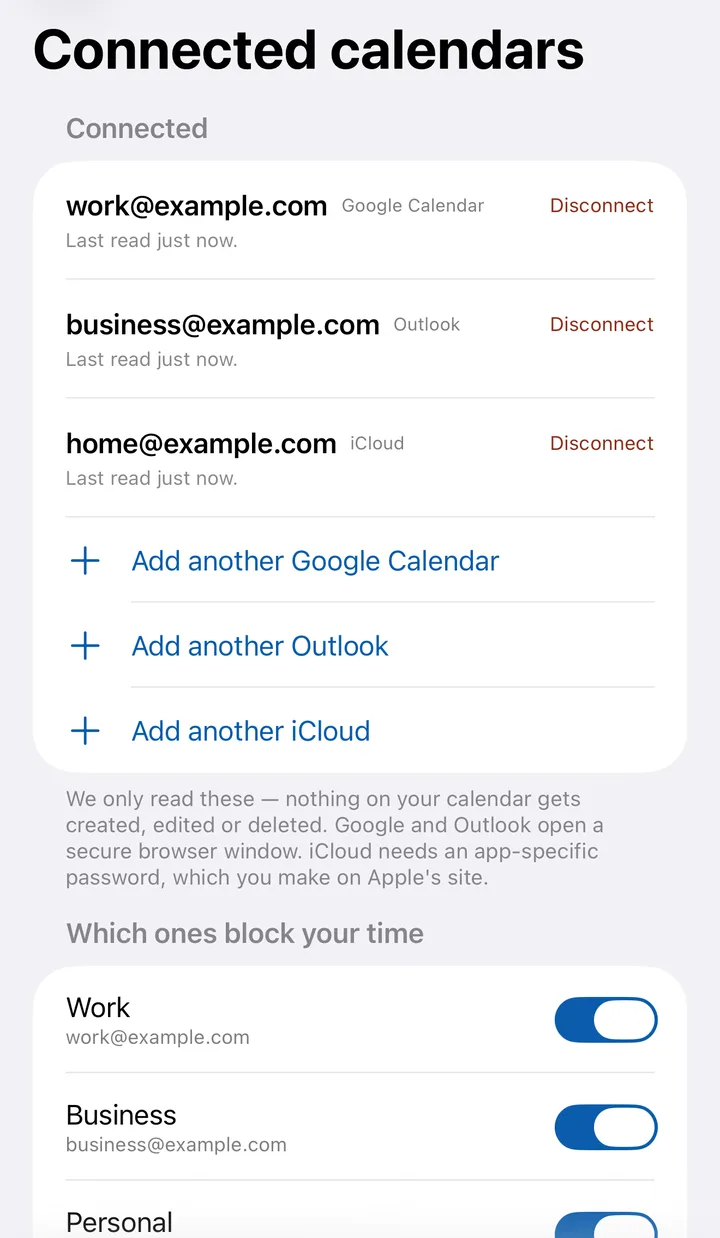
Calendars. We read your events so work lands around them, and we never write to your calendar. - 6
Try the four rules. The first run does this with you: three things on your mind go into the Inbox, each gets a length, and you see the day and time each one landed on. After that it's Calendar → Add task, or the Inbox and the once-over.
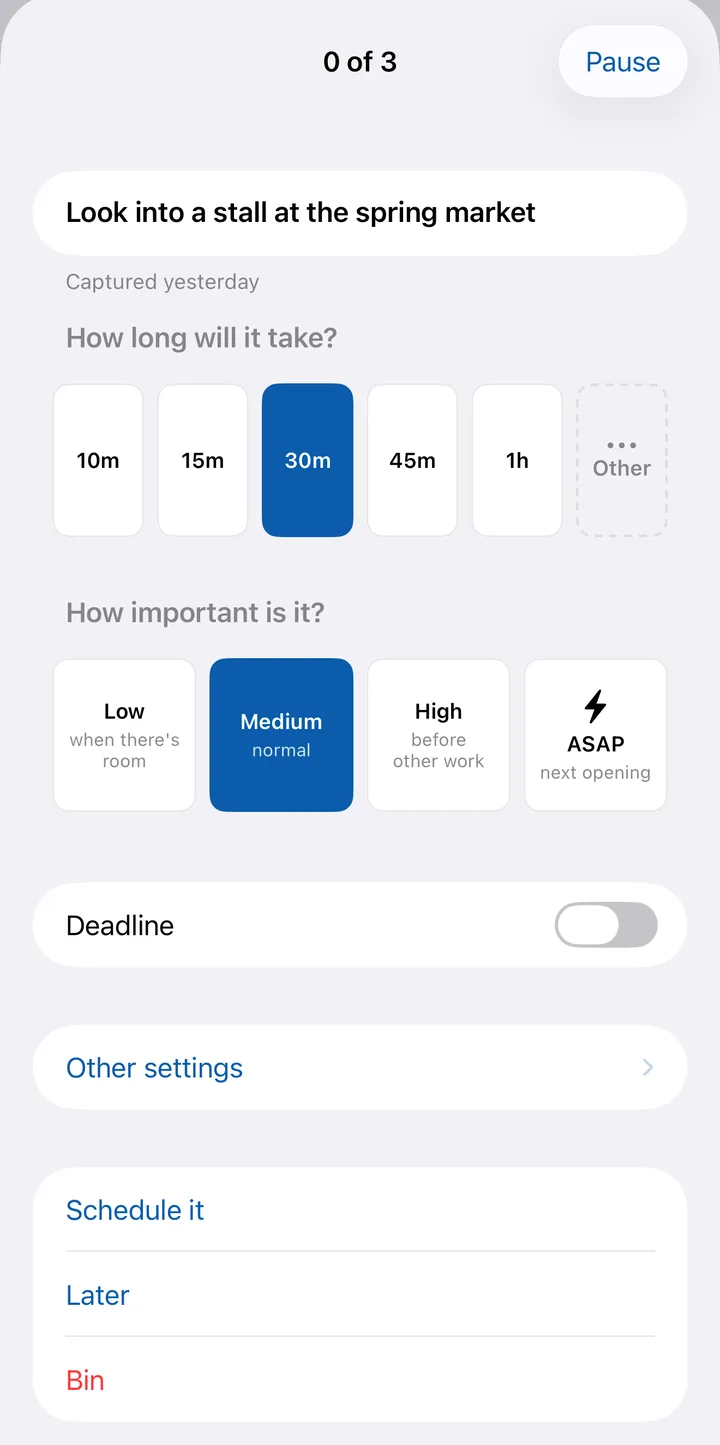
The once-over: how long, how important, then Schedule it. - 7
Set up phone capture. On the iPhone: Settings → Quick capture → the Shortcuts button → add Jot it down to your Home Screen or the Action Button. Nothing to copy, and no token: it posts as the account already signed in.
- 8
Turn on the once-over. Settings → The once-over → Daily or Weekly.
Connect a calendar before you trust the plan. Without one we think every hour is free, and we’ll cheerfully book work right on top of your meetings.
Put it on your dock and your Home Screen
You don’t have to wait for the App Store. Any browser can give YWGSD its own icon and its own window, so it opens like an app instead of living in a tab.
Sign in first, so the installed app opens on your calendar rather than the sign-up page.
- Chrome or Edge, on a Mac or PC. Look for the install icon at the right-hand end of the address bar and click it. If it isn't there, use the browser menu: in Chrome, Save and share → Install page as app; in Edge, Apps → Install this site as an app. It lands in your Applications folder, and you can drag it to the dock.
- Safari, on a Mac. File → Add to Dock.
- iPhone or iPad, any browser. Open YWGSD, tap the share button, then Add to Home Screen. Safari, Chrome, Edge and Firefox can all do this (iOS 16.4 and later).
Install it twice, if you want. Do it from the Inbox and you get a second icon called Jot it down that opens straight to the capture box — a thought takes one tap and three seconds, with nothing else in the way. Do it from anywhere else and you get YWGSD, which opens your calendar. Both are the same account, and you can keep one or both. On a Mac or PC you can also right-click the YWGSD icon in the dock or taskbar and pick Jot it down.
What you don’t get this way
This is the website in its own window, not the iPhone app. You don't get the Home Screen widget, the Siri and Action Button capture, or the icon's inbox count, because those are things only an installed app from the App Store can do — the Jot it down icon here opens the Inbox in one tap, which is close, but it still opens an app rather than capturing without one. Everything else — the calendar, the Inbox, the once-over, your tasks and settings — is the same. An installed web app also needs a connection. The iPhone app is the one that works offline.
Your first week
What using it actually looks like once it’s set up. None of this takes long, and the five-minute one is the one that matters.
Every day, first thing (2 minutes)
- Open Calendar, day or week view.
- Look at anything in amber — that's past its deadline and still rolling. Do it, shorten it, move its deadline, or cancel it.
- Check the Won't fit banner if it's up. Something can't be placed anywhere in the next 18 months, and waiting won't fix it.
- Work top to bottom. Don't re-plan.
Whenever a thought arrives (3 seconds)
Jot it down: run the capture Shortcut, or Inbox → type into What just came to mind? → Add. No duration, no priority, no deadline. That's the point. You give it the once-over later.
The once-over (5 minutes, daily or weekly)
- Inbox → Once-over N. Or let the scheduled Inbox once-over task remind you — set it under Settings → The once-over (daily or weekly recommended).
- For each card: fix the wording if the shorthand won't make sense later, tap a duration, tap a priority, then Schedule it.
- If it isn't really a task, Bin it. If you can't decide, Later — it moves to the Later list under the Inbox, stays out of the count, and comes back in your next once-over. Bring back returns it to the Inbox now.
- Keep going until All done.
Everything is a button, at every width. Nine durations and four priorities are each one tap, so a card is three taps: duration, priority, Schedule it.
When the day goes sideways
- A meeting appeared: nothing to do, the plan already moved.
- You want a clean slate: Calendar → Reschedule all.
- You got halfway: open the block → Enough for today → say what's left → Park it.
- You need something at a specific time: drag the block, or open it → Pin to a time.
Weekly (10 minutes)
- Tasks → skim Past due. Anything that keeps turning up there is either mis-estimated or shouldn't exist.
- Tasks → Repeating → check nothing is Paused that shouldn't be.
- Calendars → confirm no account says Reconnect needed or Last sync failed.
What it won’t do
Worth knowing before you start, so you’re not hunting for something that isn’t there.
Worth knowing, because "we don't do that" is positioning, not an apology.
| Not built | Why |
|---|---|
| Workspaces, projects, folders | One global pool. Dependencies cross work and personal, and sorting things into boxes is procrastination with a progress bar. |
| Statuses, stages, labels, custom fields | A task is active, done or cancelled. Everything else is admin. |
| Subtasks | "Enough for today" solves the real problem — stopping halfway — without making you plan the halves in advance. |
| List, kanban and gantt views | The calendar is the view. If work isn't on it, it isn't real. |
| Calendar write-back | Read-only is a trust guarantee. |
| Attachments, comments, docs, notetakers | Not a collaboration tool. |
| AI agents | The scheduler is deterministic and explainable. You can always tell why something landed where it did. |
| Booking links | Not a scheduling-link product. |
| Email-to-task | Capture belongs somewhere you control, not in an inbox anyone can write to. |
That’s the whole thing.
Every feature in detail is in the handbook, and the questions people ask first are on the FAQ.